How to configure Payroll Settings in EvoTime Pro
Created by Louis Dabhi-Green, Modified on Wed, 11 Mar at 4:03 PM by Louis Dabhi-Green
Payroll Settings
EvoTime Pro allows you to configure payroll settings so that employee hours and pay-related data are organised correctly for payroll processing. This includes creating pay rates, such as standard and overtime, and defining payroll periods to match your pay schedule. This guide explains how to set up payroll settings within EvoTime Pro.
Table of Contents
How to Set Up Pay Rates
Step 1: Open Payroll Settings
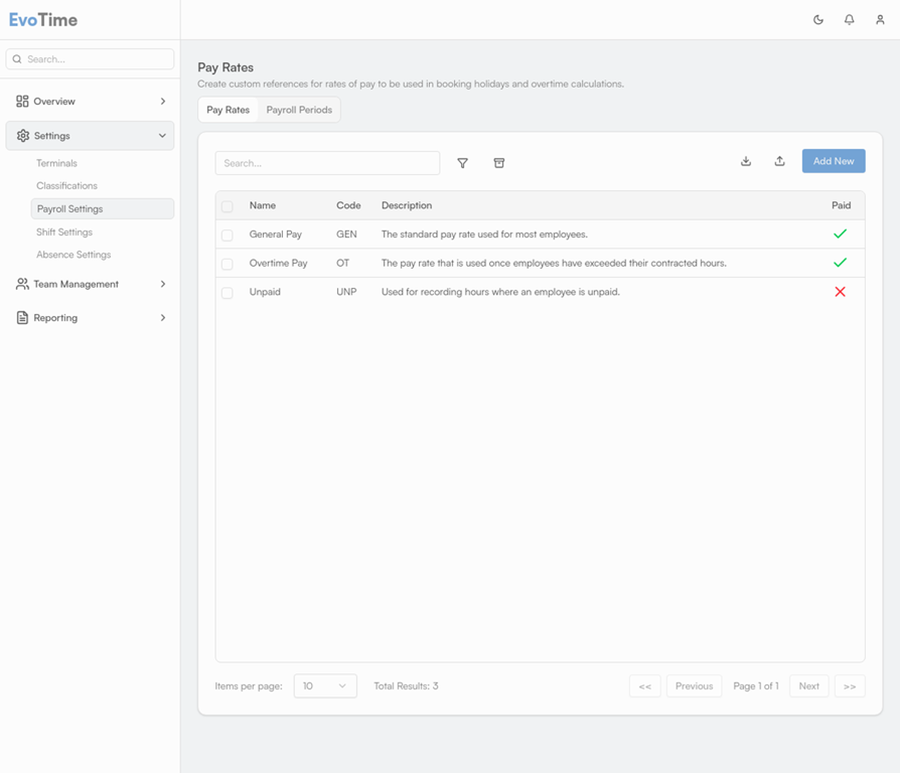
From the main navigation menu, select Settings, then click Payroll Settings.
Step 2: Add a Pay Rate
On the Pay Rates tab, click Add New
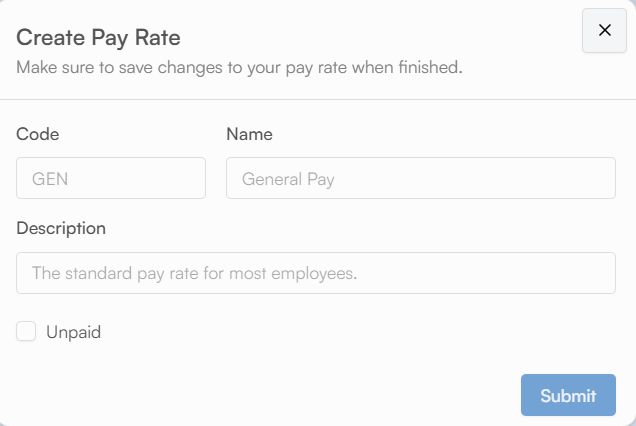
Enter the details for the pay rate (for example, “Standard Rate” or “Overtime”), then click Submit.
How to Define Payroll Periods
Step 1: Open the Payroll Periods Tab
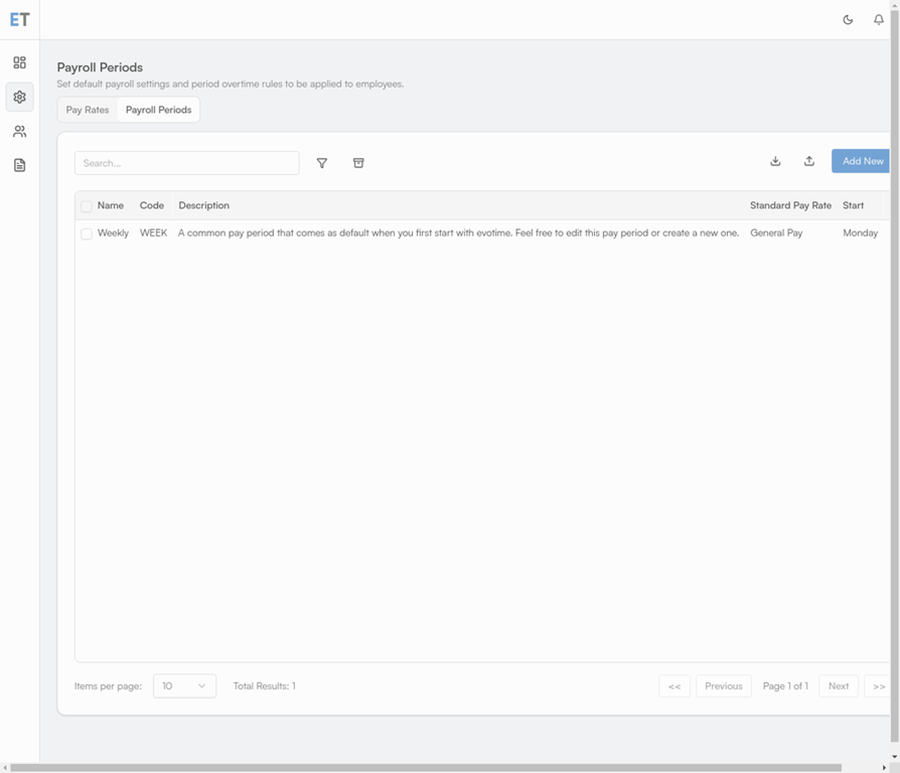
In Payroll Settings, select the Payroll Periods tab.
Step 2: Add a Payroll Period
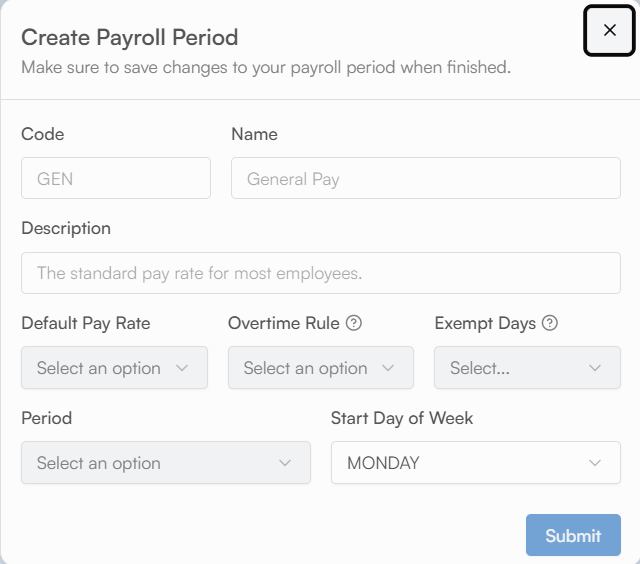
Click Add New.
Set the start date for the payroll period. For example, select Monday for a weekly payroll or the 1st for a monthly payroll.
Enter a name for the period (for example, “March 2024 Monthly”), then click Submit
Was this article helpful?
That’s Great!
Thank you for your feedback
Sorry! We couldn't be helpful
Thank you for your feedback
Feedback sent
We appreciate your effort and will try to fix the article