Using the Calendar in EvoTime Pro
Created by Louis Dabhi-Green, Modified on Mon, 29 Jun at 10:31 AM by Louis Dabhi-Green
Calendar
The Calendar provides a visual overview of employee schedules, leave, and absences. It helps managers monitor availability and plan staffing.
Table of Contents
How to View the Calendar
Step 1: Open the Calendar
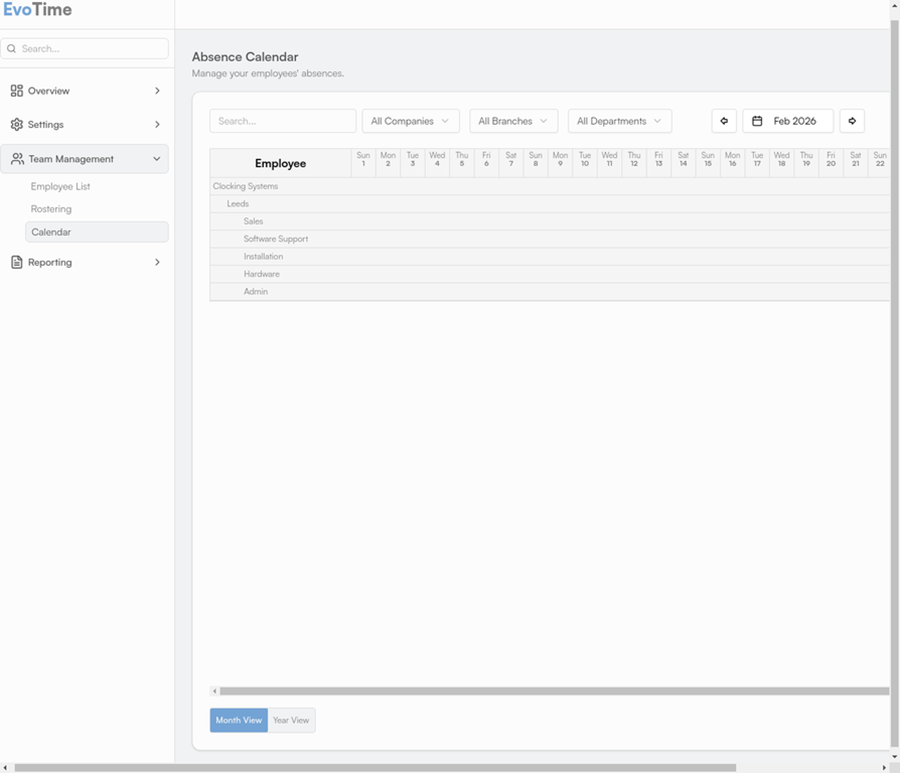
From the main navigation menu, select Team Management, then click Calendar.
Step 2: Filter and Navigate
You can adjust the view using the options at the top of the screen.
Filter by Classification – Use the dropdown menus to filter by Company, Branch, or Department.
Change the Date – Use the navigation controls to move between weeks or months.
Change the View – Select Month or Year to adjust how the calendar is displayed.

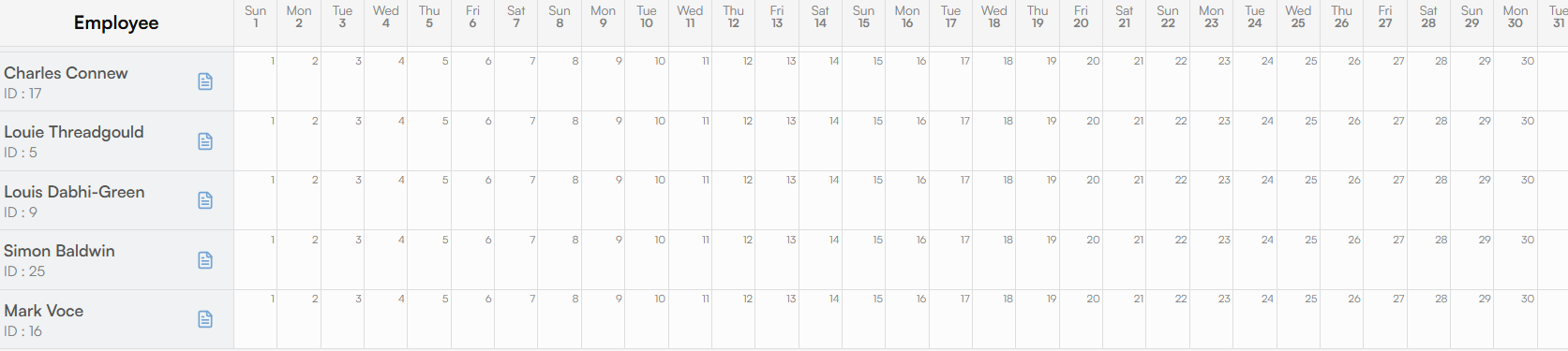
Viewing the absence calendar should look similar to the screenshot below. Next to each employees name blue icon to the right of their name, clicking this will take you directly to their timesheet.
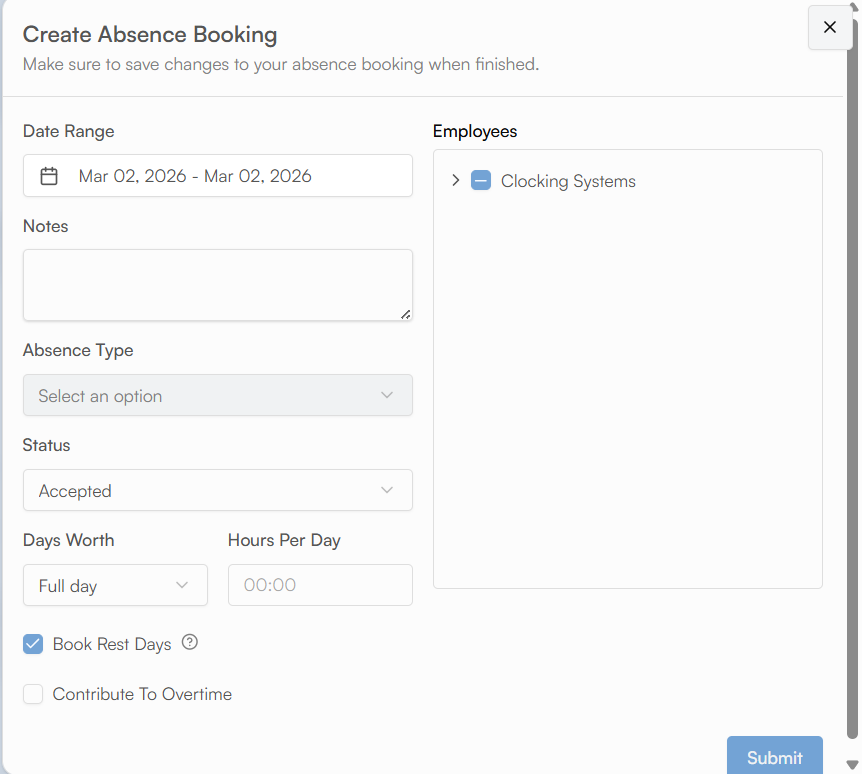
To book an absence, you can click on a day for any employee to created a booking. This will take you to the Create Absence Booking window. This is shown below in the screenshot, in here you can select the date range if you need to modify, absence type. The worth of this holiday can also be specified e.g Half/Full day or X amount of hours.
If a bulk booking needs to be made, you can select the company on the right and this will book for all under this classification. Submit once done.
How to View Employee Entitlements
The Calendar also allows you to review leave and absence entitlements.
Step 1: Select an Employee
From the calendar view, click the employee’s name in the list on the left-hand side.
Step 2: Review Entitlements
A pop-up window will display a breakdown of entitlements for different absence types, such as Annual Leave or Sick Leave.
The summary includes:
Total Entitlement – The total leave allowance for the year.
Taken – Leave already used.
Pending – Leave requests awaiting approval.
Remaining – The available leave balance.
This allows you to check an employee’s leave position without opening their full profile.

Was this article helpful?
That’s Great!
Thank you for your feedback
Sorry! We couldn't be helpful
Thank you for your feedback
Feedback sent
We appreciate your effort and will try to fix the article