How to Use the Dashboard & Attendance Overview in EvoTime Pro
Created by Louis Dabhi-Green, Modified on Thu, 12 Mar at 10:27 AM by Louis Dabhi-Green
Dashboard & Attendance Overview
Welcome to EvoTime Pro. The Dashboard and Attendance Overview help you monitor your workforce in real time. This guide explains what each screen shows and how to use them confidently.
Table of Contents
Understanding the Dashboard
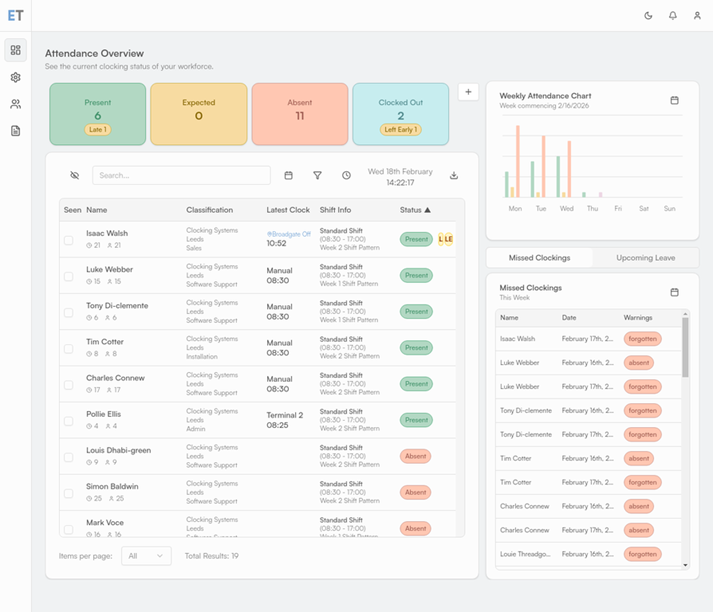
The Dashboard is the first screen you see after logging in. It provides a quick overview of what is happening today.
Real-Time Attendance Status
This section shows how many employees are Present, Expected, Absent, or Clocked Out. Each status is colour-coded so you can quickly identify any issues. Employees who are absent are clearly highlighted.
Weekly Attendance Chart
This chart displays attendance trends for the current week. It helps you spot patterns, identify unusual absence levels, and monitor overall attendance at a glance.
Missed Clockings
This section highlights employees who may have forgotten to clock in or clock out. Reviewing this regularly helps prevent timesheet errors before payroll is processed.
Upcoming Leave
Displays employees with approved upcoming leave so you can plan staffing levels in advance.
Employee List
The main area of the Dashboard shows all employees, their most recent clocking time, and their shift information, giving you a live view of workforce activity.
Using the Attendance Overview
The Attendance Overview provides a more detailed and filterable view of employee status.
Step 1: Open Attendance Overview
Click Overview in the left-hand menu, then select Attendance Overview.
Step 2: Filter Your Results
Use the filters at the top of the screen to narrow your view. You can filter by Company, Branch, or Department using the dropdown menus, or search for a specific employee by typing their name into the search bar and pressing Enter.
Step 3: Understanding Status Indicators
Each employee has a clear status label. Present means they are clocked in and working. Clocked Out means they are not currently clocked in. Absent means they are not scheduled today or are on approved leave. Late means they clocked in after their scheduled start time.
Summary
The Dashboard gives you a quick daily overview, while the Attendance Overview provides more detail and filtering options. Using both screens together helps you stay in control of attendance and resolve issues quickly.
Was this article helpful?
That’s Great!
Thank you for your feedback
Sorry! We couldn't be helpful
Thank you for your feedback
Feedback sent
We appreciate your effort and will try to fix the article