Using Reports within EvoTime Pro
Created by Louis Dabhi-Green, Modified on Mon, 29 Jun at 10:32 AM by Louis Dabhi-Green
Reports
EvoTime allows you to generate a variety of reports including employee timesheets, attendance summaries, and payroll reports.
This guide explains how to create and download reports within EvoTime. EvoTime Pro includes reporting tools that allow you to generate detailed attendance and workforce reports.
Table of Contents
- Step 1: Open Reports
- Step 2: Choose a Report Type
- Step 3: Set Report Parameters
- Step 4: Generate and Download
How to Generate a Report
Step 1: Open Reports
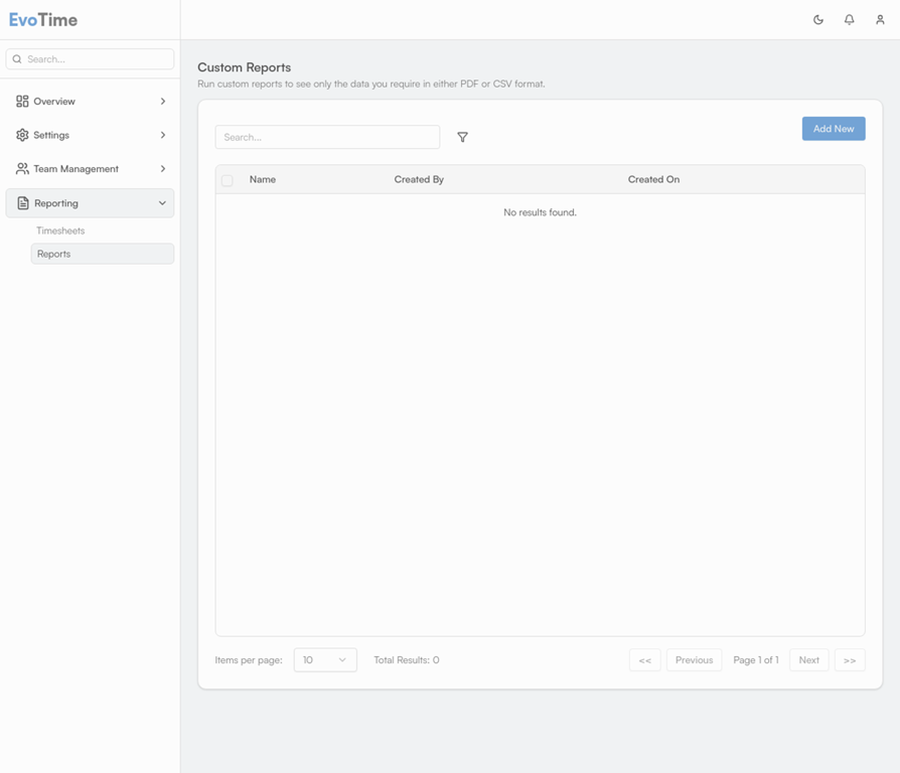
From the main navigation menu on the left, select Reporting, then click Reports. Select Add New to begin creating a new report.
Step 2: Choose a Report Type
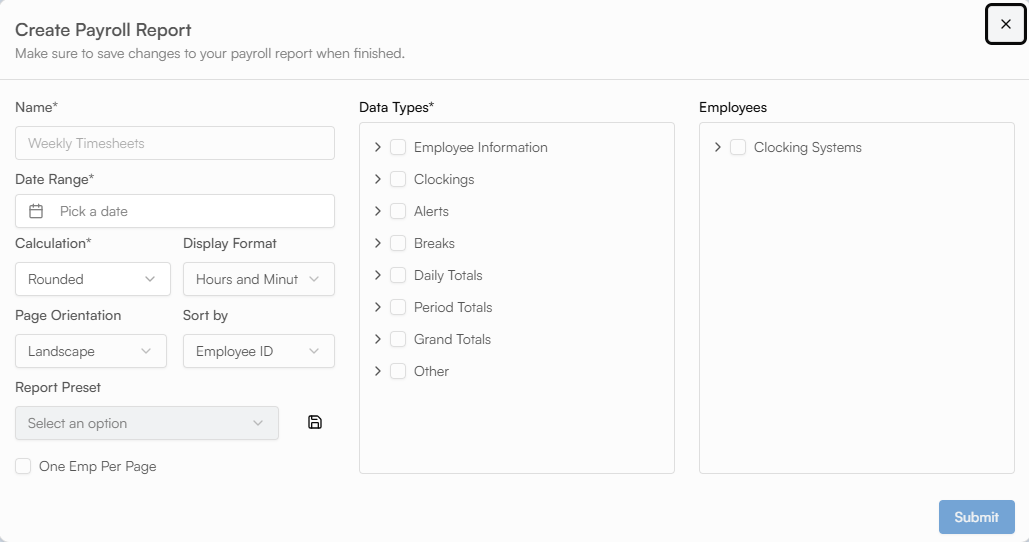
You can also create a new preset by selecting the data types you want to include, entering a name for the preset, and clicking Save, as shown in the screenshot below
Within the presets, you will see a range of report types, such as Detailed Timesheet Report, Lateness Summary, and Leave Summary, each of which outputs different information .
Step 3: Set Report Parameters
Give the report a name and select the required date range you would like to run the report for. You will then need to select the employees who you would like to run the report on.
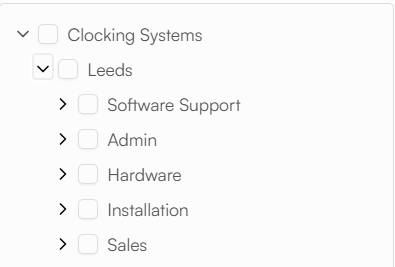
Use the filters to choose specific employees, Companies, Branches, or Departments. If a company is selected, it will be run for all employees under this classification. The same rule will also apply for Branch and Department. This is shown in the screenshot below
Step 4: Generate and Download
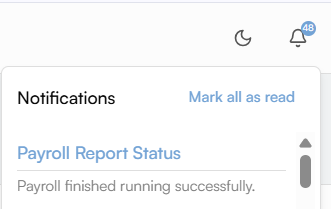
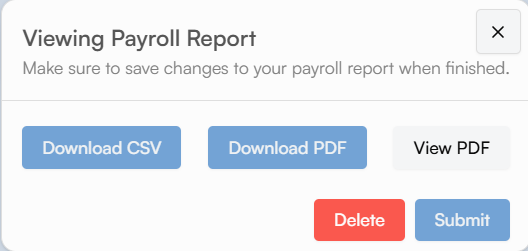
Click Submit to create the report. When the report is ready to view you will receive a notification in the top-right corner of the screen - as shown below.
You can then download the report in PDF or CSV format, alternatively you can just view the report.
Was this article helpful?
That’s Great!
Thank you for your feedback
Sorry! We couldn't be helpful
Thank you for your feedback
Feedback sent
We appreciate your effort and will try to fix the article