How to Manage Timesheets in EvoTime Pr
Created by Louis Dabhi-Green, Modified on Thu, 12 Mar at 10:28 AM by Louis Dabhi-Green
Timesheets
The Timesheets section allows you to view, edit, and manage employee clocking data. It is used to ensure payroll accuracy and monitor labour costs.
Table of Contents
How to View Employee Timesheets
Step 1: Open Timesheets
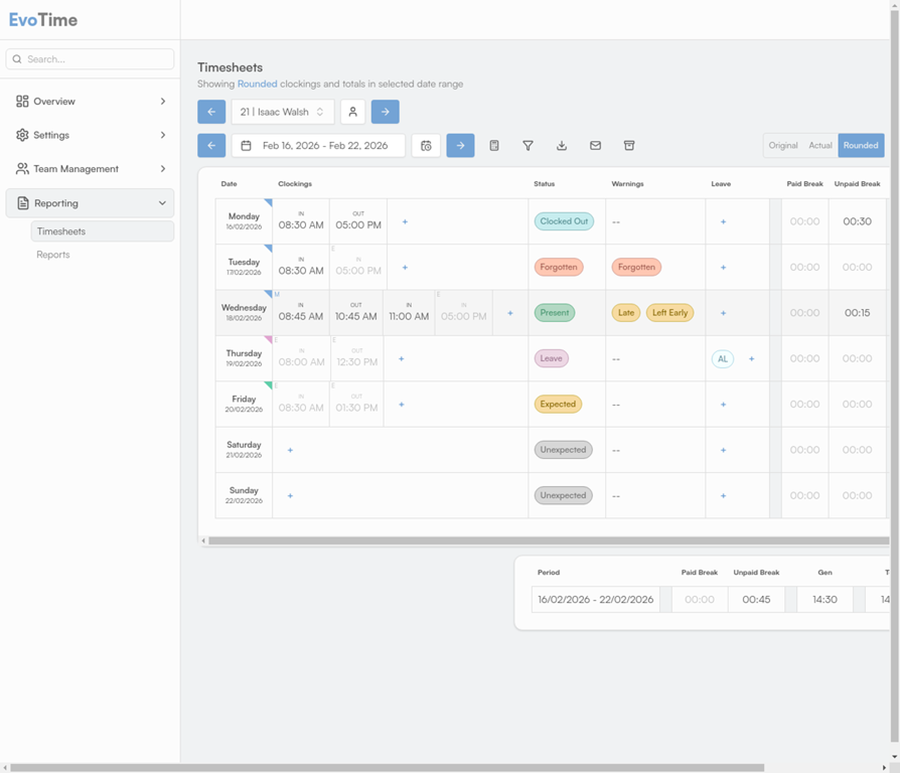
From the main navigation menu, select Reporting, then click Timesheets.
Step 2: Select an Employee and Date Range
Use the employee selection tool at the top of the screen to choose the employee you wish to view. Only one employee can be selected at a time.
Select the required date range. This is shown in the screenshot below.

Step 3: Review Timesheet Data
The timesheet grid displays detailed clocking information, including:
Clock-in and clock-out times
Break times
Total hours worked
Overtime hours
Pay rates and total pay
How to Edit a Timesheet
If a clocking is incorrect, it can be amended.
Step 1: Locate the Clocking
In the timesheet grid, find the clocking entry that requires correction.
Step 2: Open the Edit Window
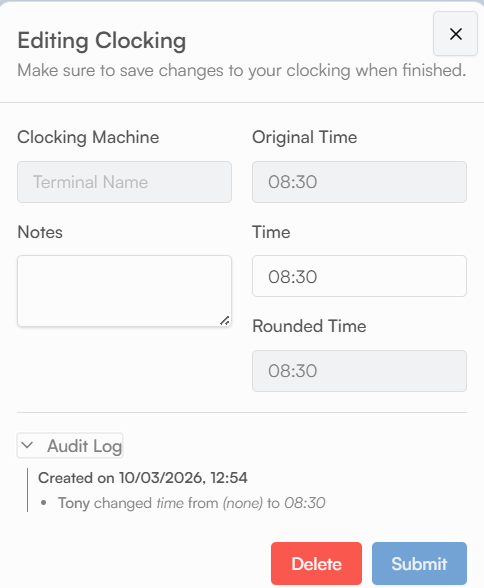
Click the clocking time to open the edit dialog. You can also view the audit log here, which shows any previous changes made to the clocking.
Step 3: Update and Save
Enter the correct time. Providing a reason in the Notes field is optional but recommended for audit purposes.
Click Submit. The timesheet will update immediately.
How to Add a Missing Clocking
If an employee has missed a clock-in or clock-out, you can add it manually.
Step 1: Locate the Relevant Day
In the timesheet grid, find the day with the missing clocking. A warning icon may appear to indicate an incomplete clocking pair.
Step 2: Open the Add Clocking Window
Click the + icon in the relevant row. This is shown below in the screenshot

Step 3: Enter Details and Save
Enter the correct clocking time. If needed you can provide a reason for the manual entry.
Click Submit. The system will recalculate the hours for that day.
Was this article helpful?
That’s Great!
Thank you for your feedback
Sorry! We couldn't be helpful
Thank you for your feedback
Feedback sent
We appreciate your effort and will try to fix the article