Managing Classifications in EvoTime Pro
Created by Louis Dabhi-Green, Modified on Mon, 29 Jun at 10:31 AM by Louis Dabhi-Green
Classifications
Classifications are used to organise your workforce in EvoTime Pro. They allow you to group employees by Company, Branch, and Department. This makes it easier to filter reports, assign permissions, and manage different areas of your organisation.
Table of Contents
How to Add a Company, Branch, or Department
The process for adding a new Company, Branch, or Department is the same.
Step 1: Open Classifications
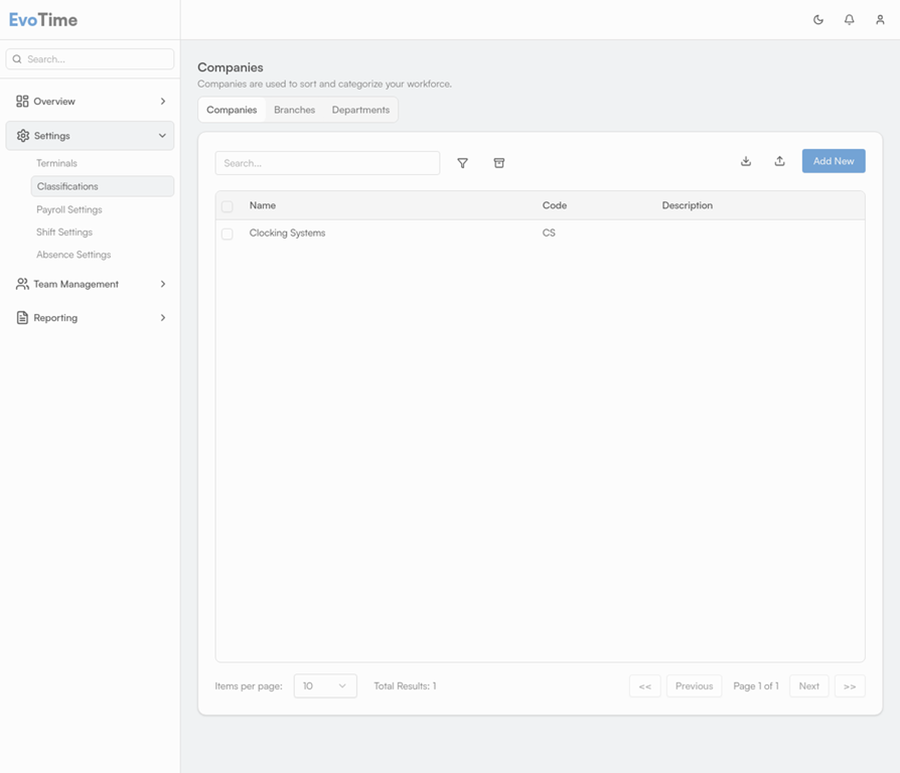
From the main navigation menu, select Settings, then click Classifications.
Step 2: Select a Classification Type
Choose the relevant tab: Companies, Branches, or Departments.
Step 3: Add the Classification
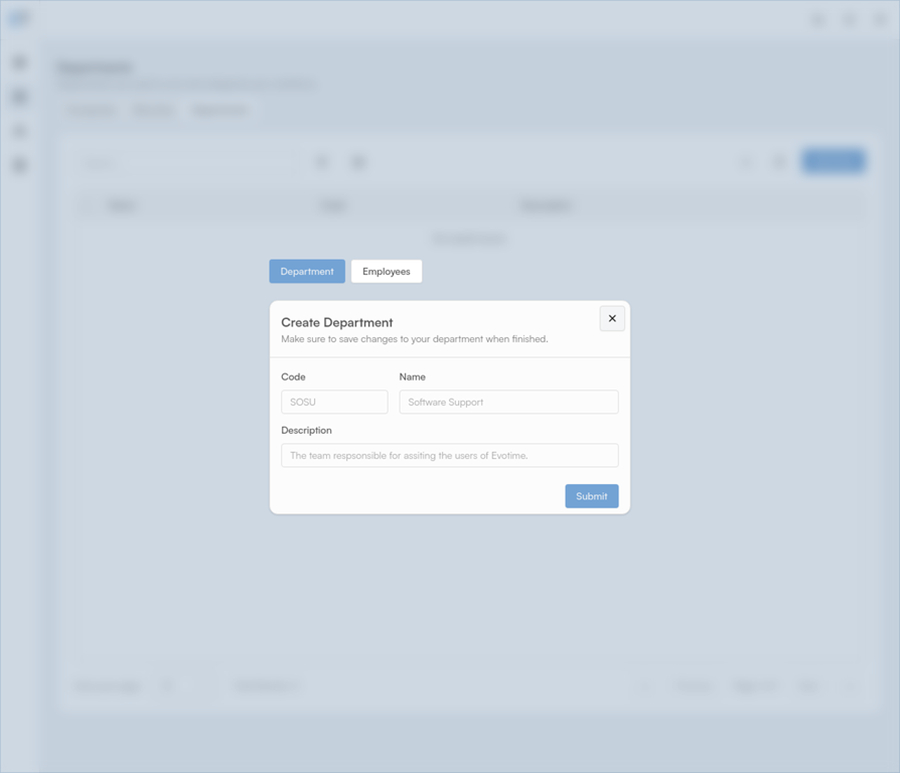
Click Add New. Enter the required details:
Code – A short, unique code (for example, “LDN”).
Name – The full name (for example, “London”).
Description – Optional additional information.
Step 4: Save
Click Submit to create the classification. It will now be available to assign to employees and use for filtering.
How to Assign Classifications to Employees
Once classifications are created, they can be assigned to employees.
Step 1: Open the Employee List
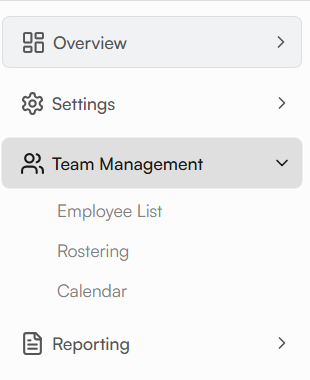
From the main navigation menu, select Team Management, then click Employee List.
Step 2: Edit an Employee
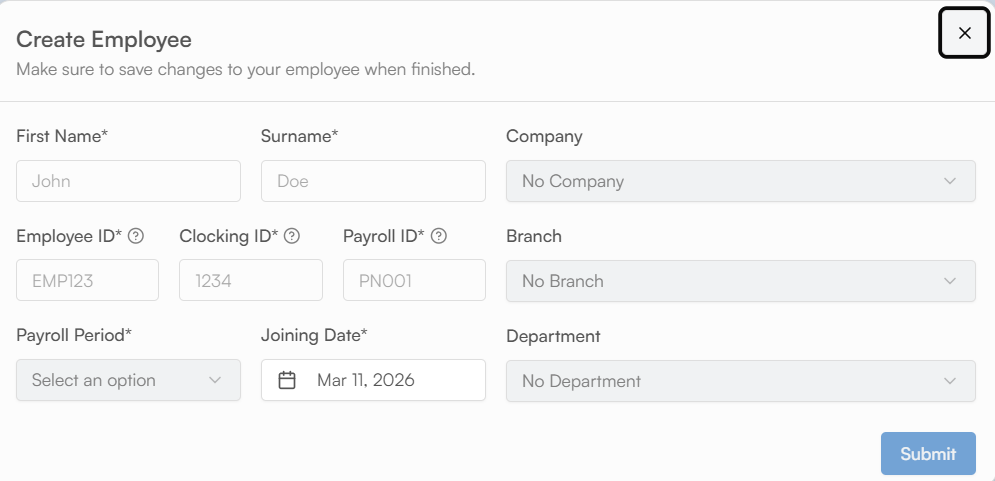
Click anywhere on the employee’s row to open their profile
In the employee details screen, use the dropdown menus to select the appropriate Company, Branch, and Department.
Click Submit to update the employee profile.
Was this article helpful?
That’s Great!
Thank you for your feedback
Sorry! We couldn't be helpful
Thank you for your feedback
Feedback sent
We appreciate your effort and will try to fix the article