Configuring Shift Settings in EvoTime Pro
Created by Louis Dabhi-Green, Modified on Mon, 29 Jun at 10:31 AM by Louis Dabhi-Green
Shifts
Shift Settings define work schedules, break rules, and overtime settings. This guide explains how to create Breaks, Shifts, and Shift Patterns.
Table of Contents
How to Create Breaks
Breaks can be set as paid or unpaid and can be deducted automatically from an employee’s timesheet.
Step 1: Open Shift Settings
From the main navigation menu, select Settings, then click Shift Settings.
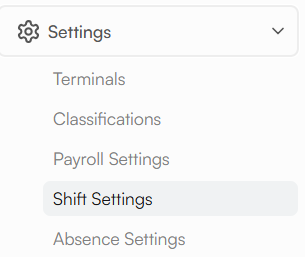
Step 2: Select the Breaks Tab
Ensure the Breaks tab is selected.
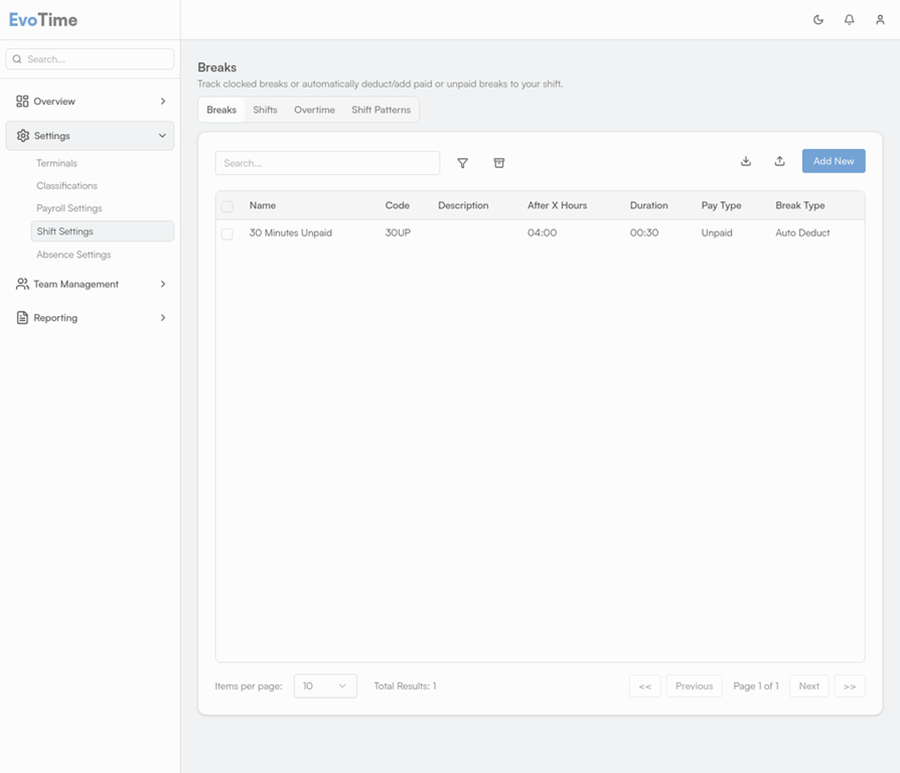
Step 3: Add a Break
Click Add New and complete the required details:
Code & Name – A unique code and name (for example, “LUNCH”).
Break Type – Select Clocked (employee must clock out and in) or Automatic.
Pay Type – Select Paid or Unpaid.
Duration – Enter the length of the break.
After X Hours – Set how many hours must be worked before the break applies.
Auto deduct if not clocked – If selected, the break will be deducted even if the employee does not clock out.
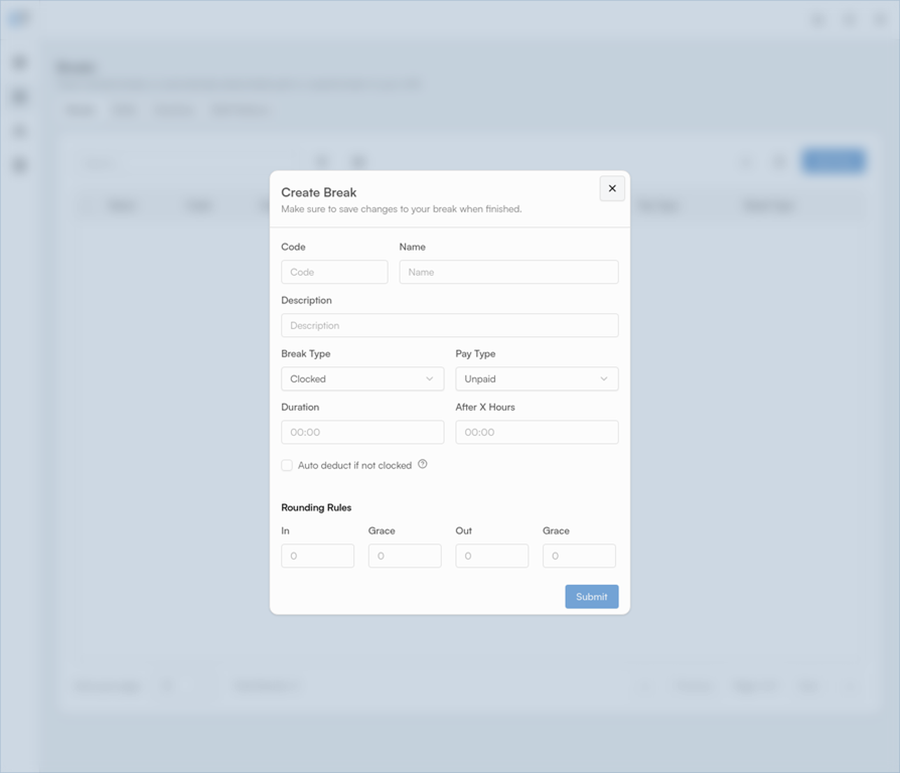
Step 4: Save
Click Submit to create the break.
How to Create Shifts
Shifts are templates for a single working day, including start and finish times and assigned breaks.
Step 1: Select the Shifts Tab
In Shift Settings, click the Shifts tab.
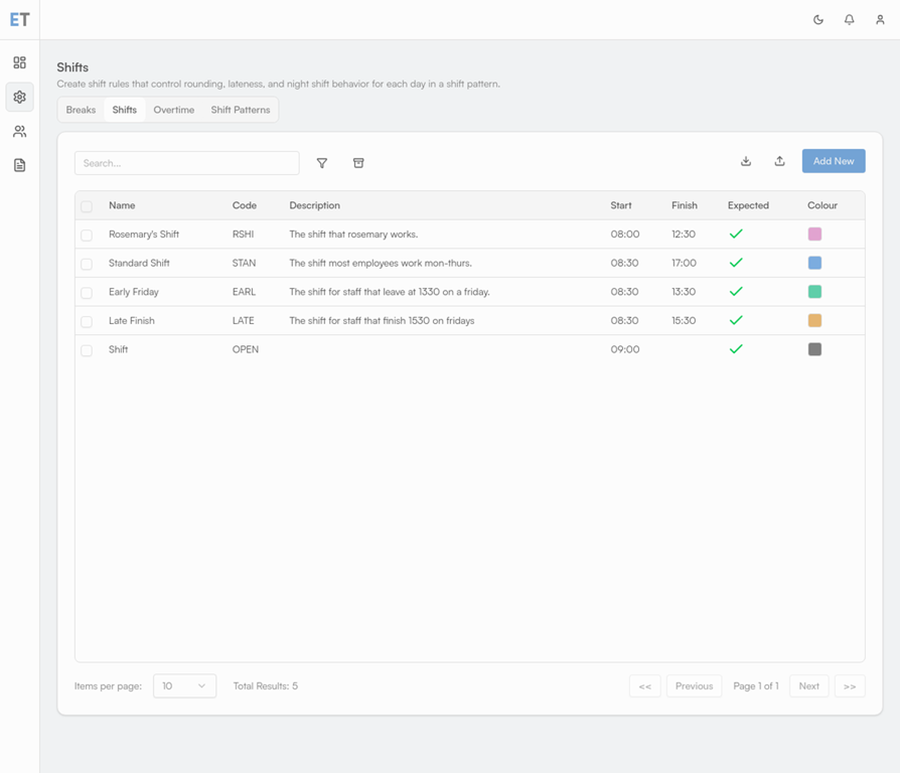
Step 2: Add a Shift
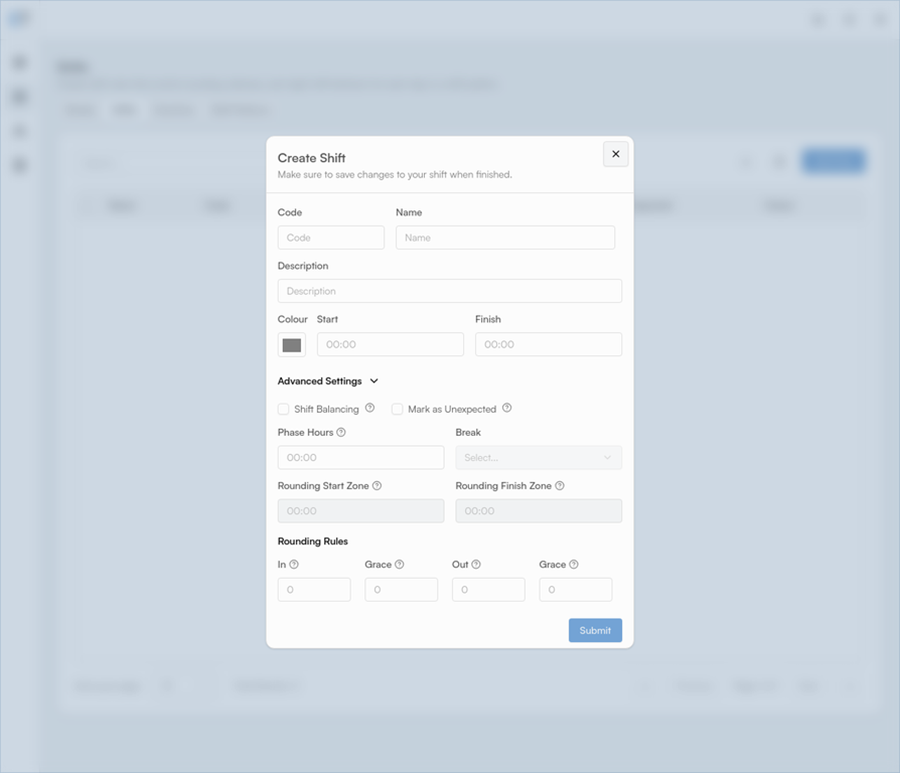
Click Add New and complete the shift details:
Code & Name – A unique code and name (for example, “DAY”).
Start & Finish – Enter the scheduled start and end times.
Break – Select a pre-configured break.
Advanced Settings – Configure rounding rules, grace periods, and other advanced options if required.
Step 3: Save
Click Submit to create the shift.
How to Create Shift Patterns
Shift Patterns are repeating sequences of shifts that can be assigned to employees.
Step 1: Select the Shift Patterns Tab
In Shift Settings, click the Shift Patterns tab.
Step 2: Add a Shift Pattern
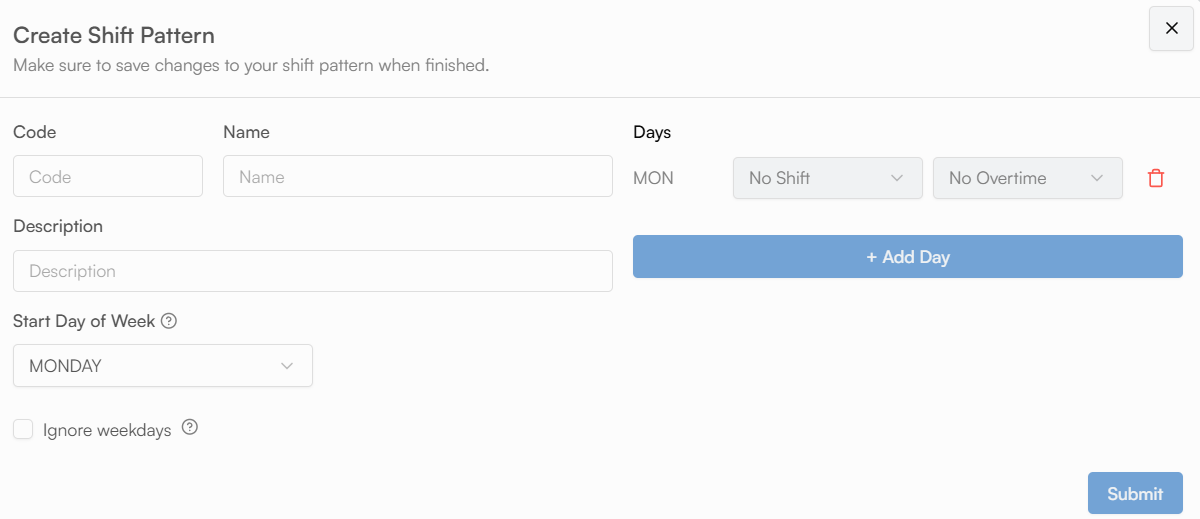
Click Add New and complete the required details:
Code & Name – A unique code and name for the pattern.
Start Day of Week – Select the day the pattern begins.
Days – Click + Add Day to add shifts for each day. Select from the shift templates you have created. A minimum of 7 days is required to create a valid pattern. You can add both a shift and a daily overtime rule to apply to the rule.
Step 3: Save
Click Submit to create the shift pattern. It can then be assigned to employees from their profile.
Was this article helpful?
That’s Great!
Thank you for your feedback
Sorry! We couldn't be helpful
Thank you for your feedback
Feedback sent
We appreciate your effort and will try to fix the article