How to Configure Absence Settings in EvoTime Pro
Created by Louis Dabhi-Green, Modified on Thu, 12 Mar at 10:28 AM by Louis Dabhi-Green
Absence settings
Absence Settings allow you to define the types of leave available within your organisation and set employee leave allowances.
Table of Contents
How to Create Absence Types
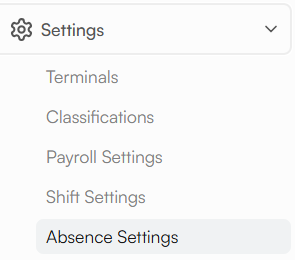
Step 1: Open Absence Settings
From the main navigation menu, select Settings, then click Absence Settings.
Step 2: Add an Absence Type
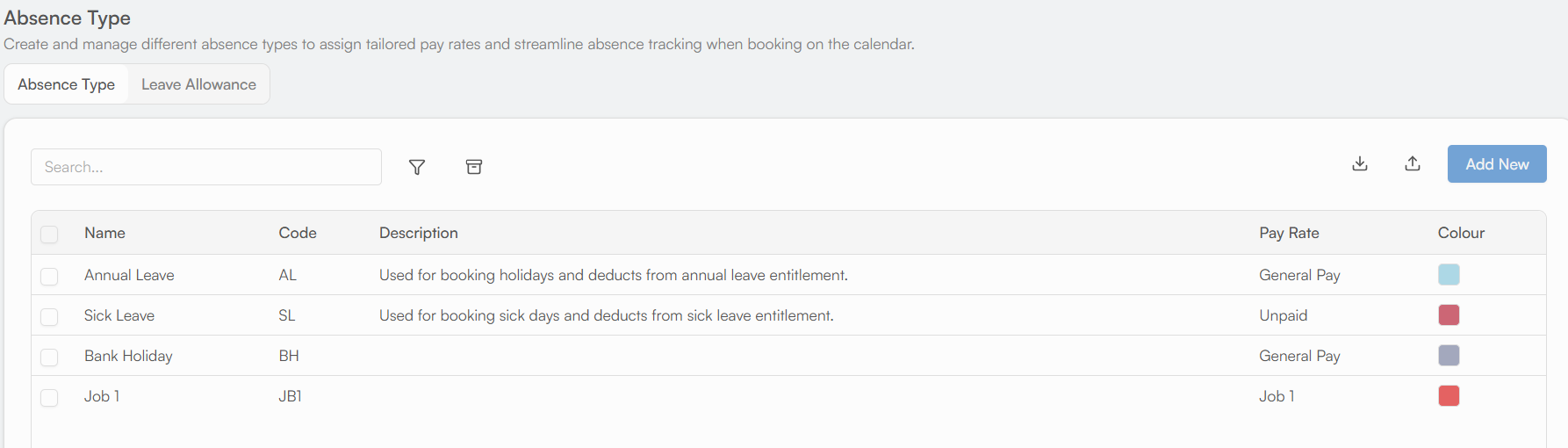
On the Absence Types tab, click Add New.
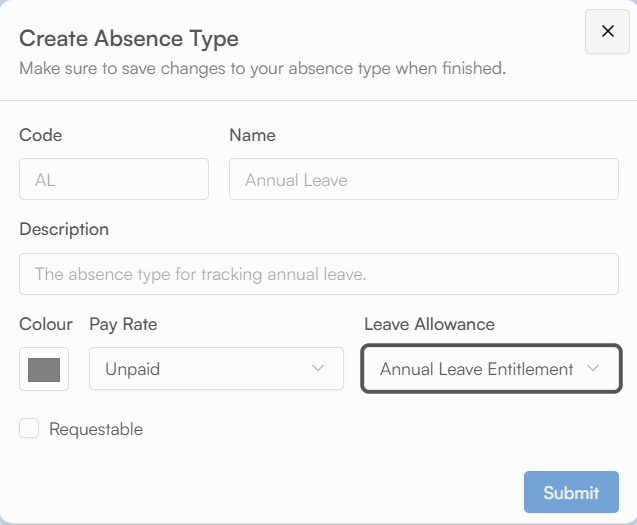
Enter the required details for the new leave type (for example, “Jury Duty”). You can also specify which Pay Rate the absence should use, and which leave allowance it should deduct from, if applicable.
Additionally there is also a requestable field. This is if you would like this absence to be requestable by employees within the Employee Portal. Selecting a colour will highlight this absence as specified when booked.
How to Set Leave Allowances
Step 1: Open the Leave Allowance Tab
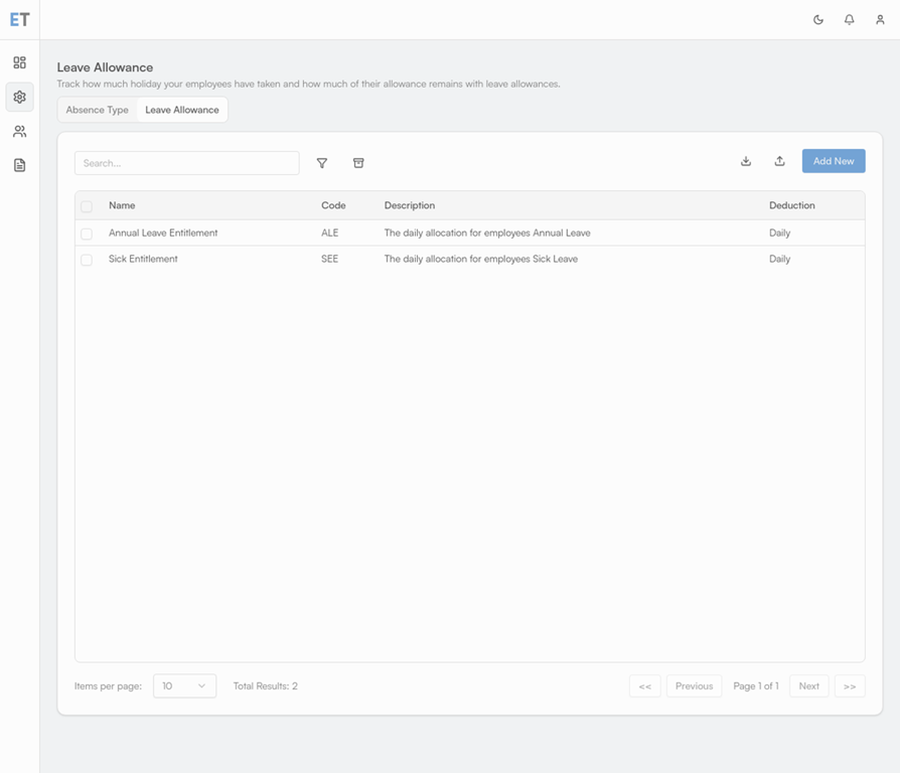
In Absence Settings, select the Leave Allowance tab.
Step 2: Configure Entitlements
For each absence type, set the annual entitlement for employees.
You can specify whether the allowance is measured in hours or days.
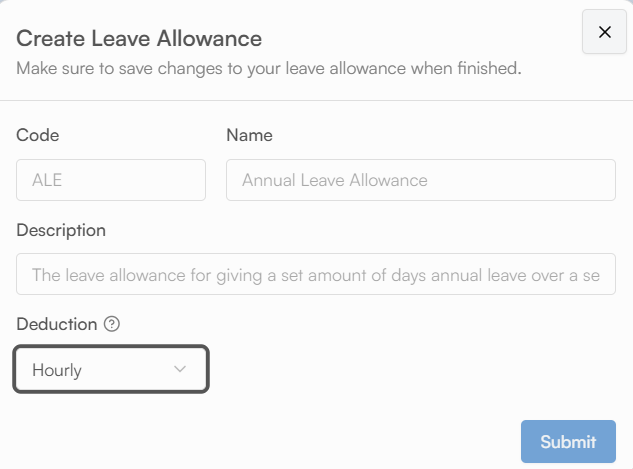
Once done hit Submit to save. The entitlement will now be appliable to an employee within the Employee section under Leave.
Was this article helpful?
That’s Great!
Thank you for your feedback
Sorry! We couldn't be helpful
Thank you for your feedback
Feedback sent
We appreciate your effort and will try to fix the article