Break down of how to build a report
Created by Kai Winterbottom, Modified on Fri, 25 Sep at 10:02 AM by Kai Winterbottom
Companies use Evotime to record the hours worked by staff, then rely on other software like Sage to handle payroll. Alternatively, you can generate weekly reports from the system and pay employees based on the total hours worked, calculated as hours worked multiplied by pay rate.
The way you pull of these reports to see hours worked by staff-
Go to reporting
reports
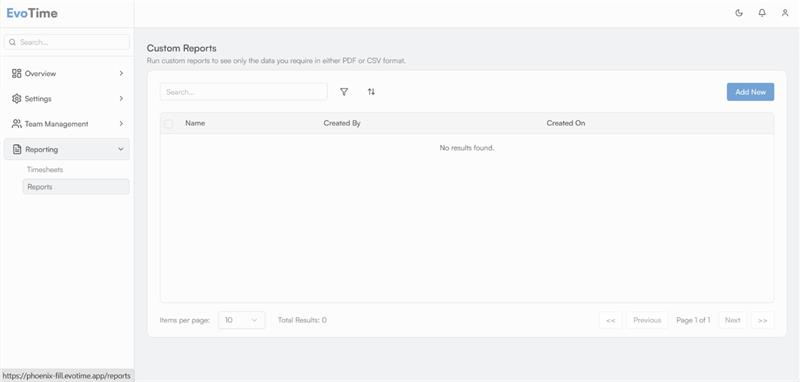
Then add new
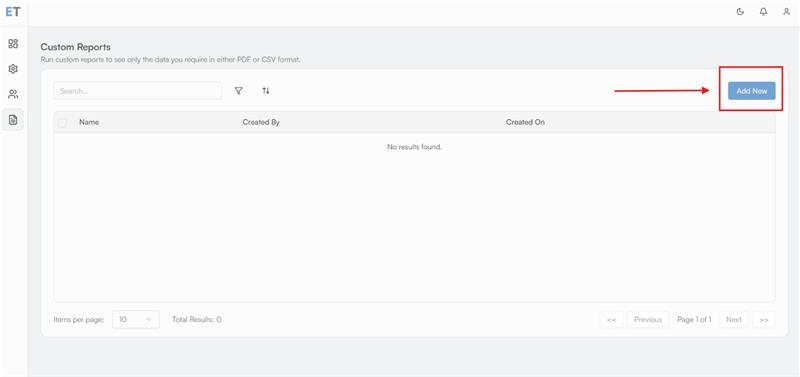
Clicking "Add New" takes you to the report menu, where you can select options like the date range for the report. The middle column lets you choose what content to include, and the far-right section allows you to pick who should be included in the report.
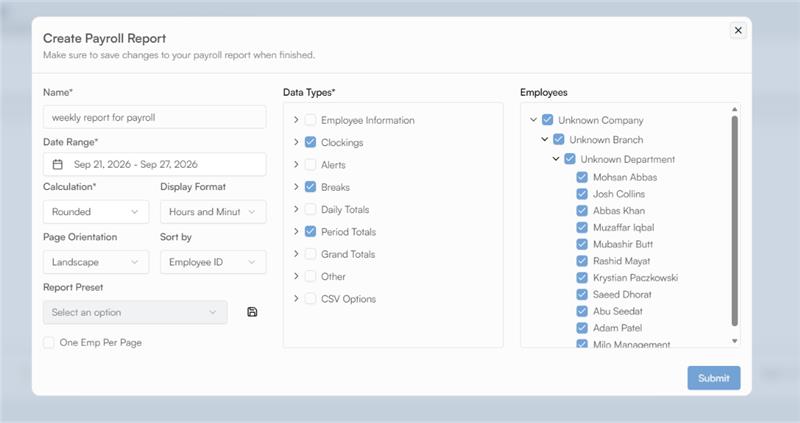
The report above is a good example of a payroll run, featuring a one-week date range. In the middle column, I’ve selected period totals (total hours worked during that range), clockings (to view clock-in times for different days), and breaks to check if they’ve been calculated correctly.
Once you've clicked submit on the report, it can take up to 5 minutes to show on the custom reports list, but can take as little as 10 seconds.
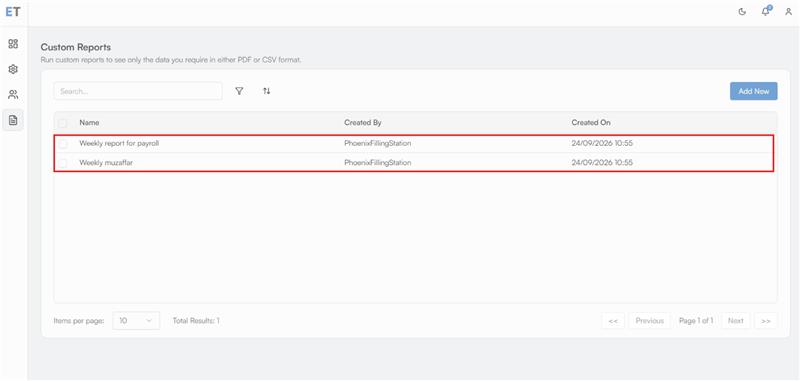
Then once the report has generated, once you click on it, it will bring the option to download a CSV(Microsoft Excel file), PDF file or just view the report without downloading anything.
Was this article helpful?
That’s Great!
Thank you for your feedback
Sorry! We couldn't be helpful
Thank you for your feedback
Feedback sent
We appreciate your effort and will try to fix the article